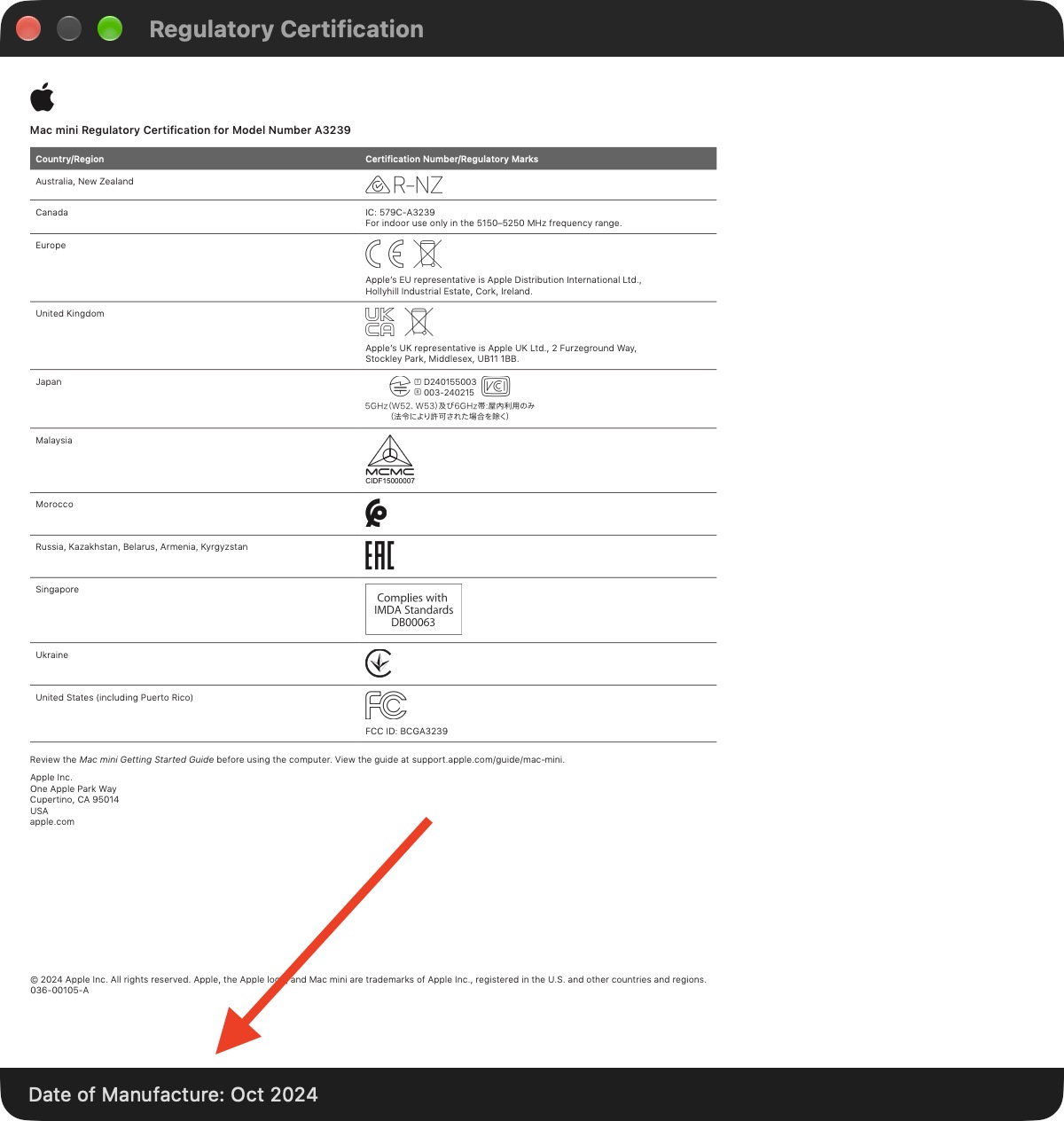
Mac users who want to know when their machine was built have had few options since Apple changed how it assigns serial numbers. With macOS 27 Golden Gate, the company has quietly restored a way to see that information through a system report that lists regulatory certifications.
Where to find the Date of Manufacture
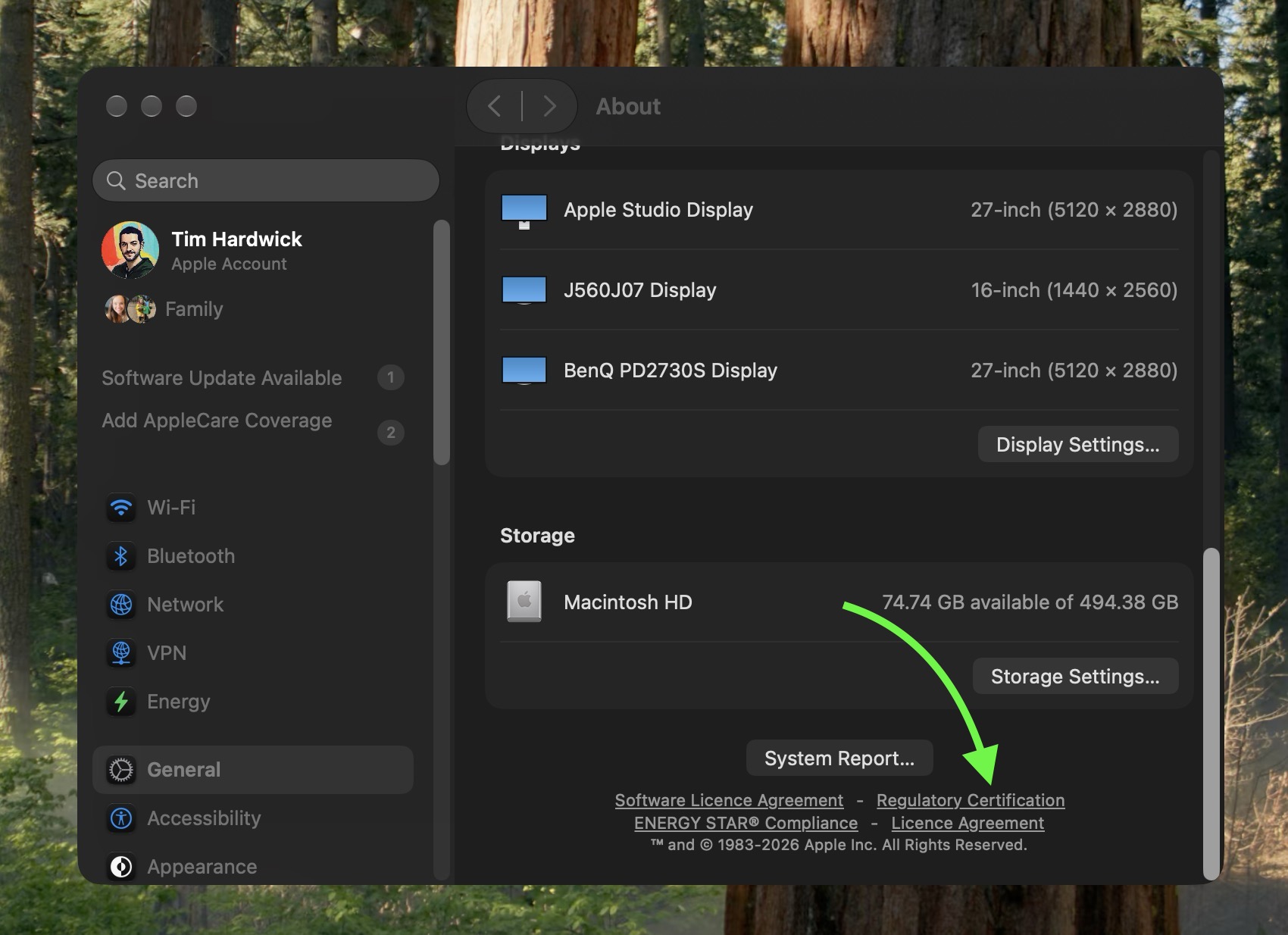
The field lives inside the Regulatory Certification section of the System Report. To reach it, open System Settings, go to General, and click About. From there, choose System Report and select Regulatory Certification. The certificate that appears includes a Date of Manufacture entry at the bottom.
That placement is easy to miss, which may explain why the feature has not drawn much attention. Apple has not highlighted it, according to the source, and it is not presented as a headline capability of the operating system.
Why the date had become hard to find
Before 2021, a Mac’s serial number encoded details about when and where the machine was manufactured. Apple began adopting randomized serial numbers in 2021, and that change removed the encoded manufacturing details. For people who bought a Mac after the shift, there was no straightforward method to determine a manufacture date.
The new Date of Manufacture field fills that gap, at least in part. It arrives during the macOS 27 beta cycle, when regulatory certification first appeared in the system, and it remains available in the released version of macOS 27 Golden Gate.
What the date actually reflects
Forum members on MacRumors have been comparing notes on the feature. One member, posting as pdfu, spotted the Date of Manufacture field. Another member reported that the date shown for their Mac corresponded to a logic board that had been replaced, which suggests the value is tied to the logic board rather than to the final assembly of the complete computer.
That distinction matters for anyone trying to date a machine that has been serviced. If the logic board has been swapped, the displayed manufacture date may reflect the replacement part rather than the original build. The certificate does not appear to distinguish between the two, so the date should be read with that possibility in mind.
How to check your own Mac
The process takes only a few steps and does not require any special tools:
- Open System Settings.
- Select General.
- Click About.
- Open System Report.
- Choose Regulatory Certification.
- Look for the Date of Manufacture at the bottom of the certificate.
For anyone who has wondered how old their Mac really is, the field offers a direct answer. It is not a prominent feature, and it does not come with an explanation of its limits, but it restores a piece of information that randomized serial numbers took away.